If you have a website and you care about how it performs on Google, Google Search Console is one tool you genuinely cannot afford to ignore. It is completely free, built directly by Google, and gives you a direct line of communication with the search engine that decides whether your pages get found — or stay invisible.
This guide explains exactly what it is, how it works, what each report tells you, and how to use Google Search Console to improve your website’s visibility in 2026.
What Is Google Search Console?
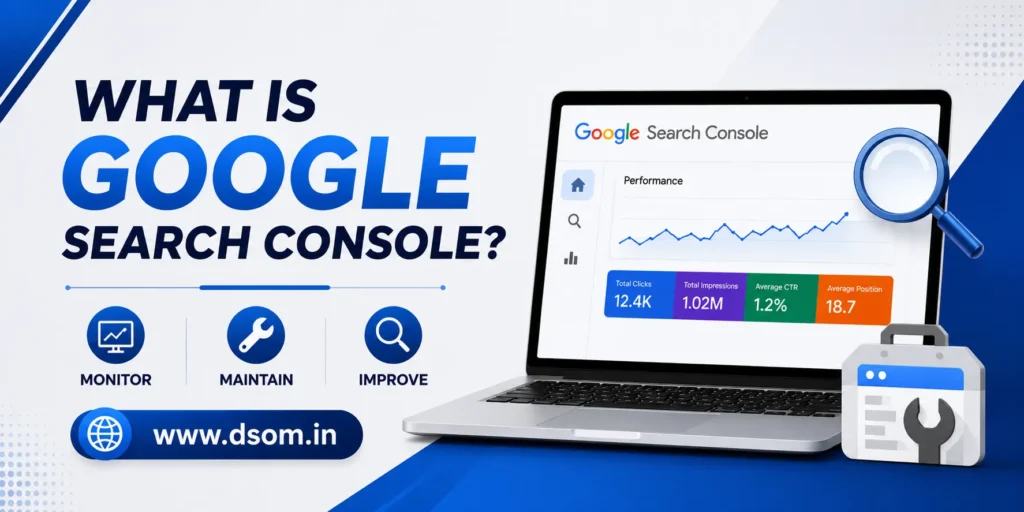
Google Search Console (GSC) is a free tool from Google that helps website owners monitor, maintain, and troubleshoot their site’s presence in Google Search results. It shows you how Google sees your website — which pages are indexed, what search queries bring people to your site, which pages have errors, and how your site performs over time in terms of clicks, impressions, and average position.
In simple terms, GSC is the closest thing to a direct conversation with Google about your website. Anyone serious about SEO, content marketing, or website maintenance needs to understand what is Google Search Console and how to read the data it provides.
Why Google Search Console Matters for SEO
Google Search Console for SEO is not optional — it is foundational. Here is why it matters so much:
| Reason | Why It Matters |
|---|---|
| See How Google Indexes Your Site | Confirms which pages Google can find and show in search results |
| Identify Search Queries | Reveals the exact terms people use to find your content |
| Spot Technical Issues | Surfaces crawl errors, mobile usability problems, and indexing failures |
| Track Performance Over Time | Shows clicks, impressions, CTR, and average position trends |
| Submit Sitemaps | Helps Google discover new and updated pages faster |
| Monitor Backlinks | Shows which sites link to yours and which pages are linked most |
| Fix Manual Actions | Alerts you if Google has applied a penalty and why |
| Free of Cost | All of this comes at zero cost, directly from Google |
Without Google Search Console, you are essentially guessing how your site performs in search. With it, you have real data straight from the source.
Google Search Console Setup: Getting Started
GSC setup takes just a few minutes, but the verification step is where most beginners get stuck. Here is the process broken down.
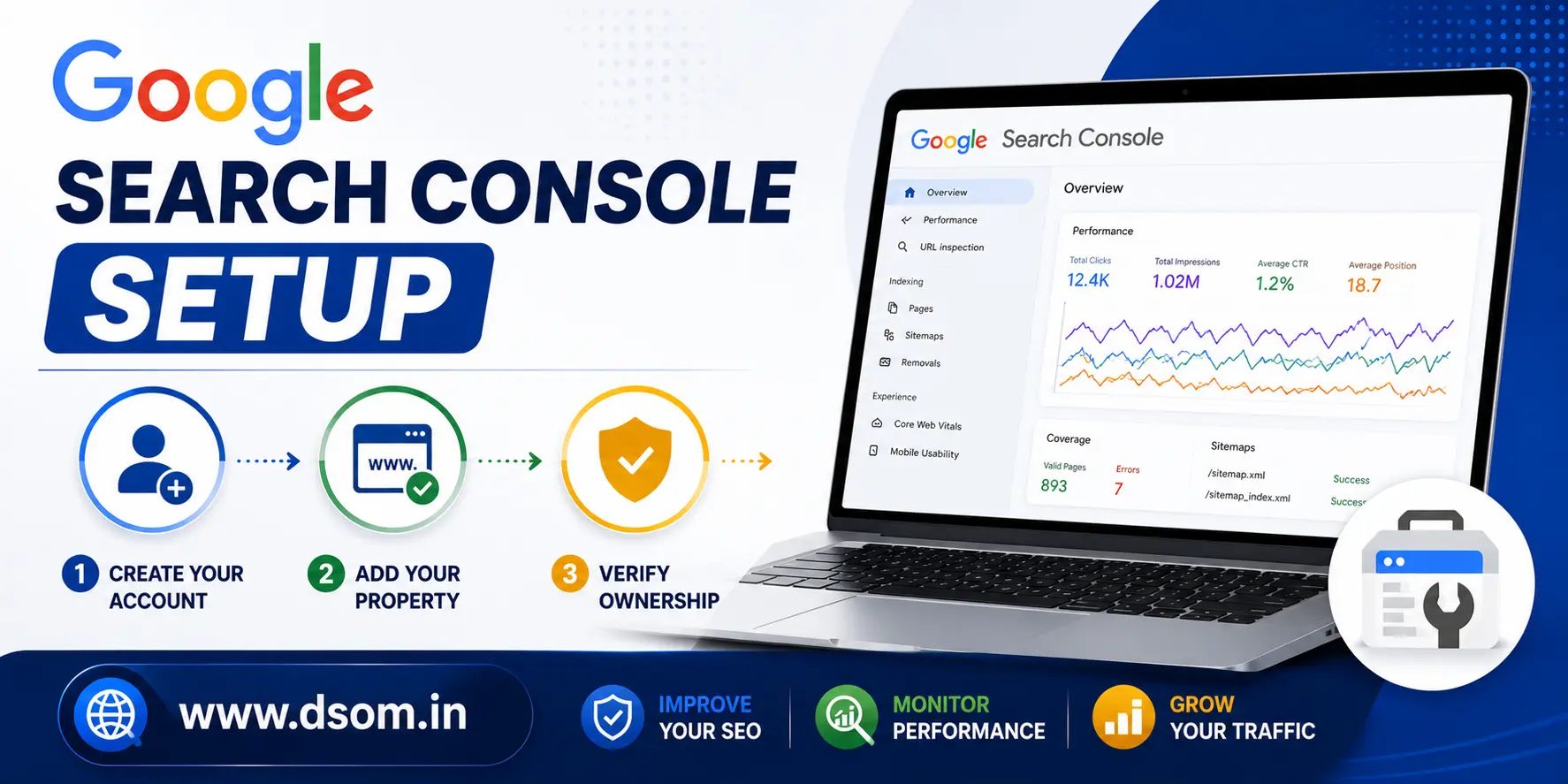
Step 1: Create Your Account
Visit search.google.com/search-console and sign in with the Google account you want associated with your website. This is usually the same account you use for Google Analytics or Google Ads, but it does not have to be.
Step 2: Add Your Property
You can add your website as either a Domain property (covers all subdomains and protocols — http, https, www, non-www) or a URL-prefix property (covers only the exact URL you enter). For most websites, the domain property is recommended because it gives you the most complete picture of your site’s performance.
Step 3: Verify Ownership
Google Search Console verification confirms that you actually own or control the website. There are several verification methods:
| Verification Method | How It Works | Best For |
|---|---|---|
| DNS Record | Add a TXT record to your domain’s DNS settings | Domain properties — most reliable |
| HTML File Upload | Upload a Google-provided file to your website’s root directory | Developers with file access |
| HTML Tag | Add a meta tag to your homepage’s <head> section | Quick verification for any site |
| Google Analytics | Automatic if GA is already installed with the same account | Sites already using Google Analytics |
| Google Tag Manager | Automatic if GTM is set up on the site | Sites using GTM |
DNS record verification is the most robust because it covers your entire domain regardless of how the site is built or hosted, and it remains valid even if you change hosting providers or rebuild your website.
Understanding Google Search Console Reports
Once your property is verified, the reports start populating — though it can take a few days for data to appear. Here are the key reports every website owner should understand.
Performance Report
The Performance report is the heart of google Search Console for SEO. It shows total clicks, total impressions, average click-through rate (CTR), and average position for your site across Google Search.
You can filter this data by query, page, country, device, and search appearance. This is where you discover which keywords are driving traffic, which pages are underperforming despite ranking, and where opportunities exist to improve titles and meta descriptions to boost CTR.
Index Coverage Report
This report tells you exactly which pages on your site Google has indexed and which it has not — along with the reasons why. Common issues include pages blocked by robots.txt, pages marked “noindex,” duplicate content, redirect errors, and server errors (5xx).
Monitoring this report regularly helps you catch indexing problems before they significantly impact your organic traffic. A sudden drop in indexed pages is often one of the earliest warning signs of a technical SEO issue.
Sitemaps Report
The Google Search Console sitemap report lets you submit your XML sitemap directly to Google, helping it discover your pages more efficiently — especially useful for large sites or sites that publish content frequently. This report shows how many URLs were submitted versus how many were actually indexed from your sitemap, highlighting any discrepancies that need investigation.

Mobile Usability Report
With mobile-first indexing now standard, this report flags any pages with mobile usability issues — text too small to read, clickable elements too close together, content wider than the screen, and similar problems that hurt both user experience and rankings.
Core Web Vitals Report
This report tracks your site’s performance against Google’s Core Web Vitals — Largest Contentful Paint (LCP), Interaction to Next Paint (INP), and Cumulative Layout Shift (CLS). These metrics directly influence rankings, and Search Console categorizes your URLs as Good, Needs Improvement, or Poor for each metric.
Links Report
The Links report shows your site’s internal linking structure and external backlinks — which pages link to you, which of your pages receive the most external links, and the top linking domains. This data is valuable for both SEO strategy and identifying potentially harmful backlinks that may need a disavow.
Manual Actions and Security Issues
If Google has detected a violation of its webmaster guidelines — such as spammy structured data, unnatural links, or thin content — it will appear here as a manual action. Search Console errors related to security issues report malware, hacked content, or phishing detected on your site. Both require immediate attention, as they can result in significant ranking drops or removal from search results entirely.
How to Use Google Search Console Effectively
Knowing how to use Google Search Console is about building habits, not just understanding individual reports.
Here is a practical approach:
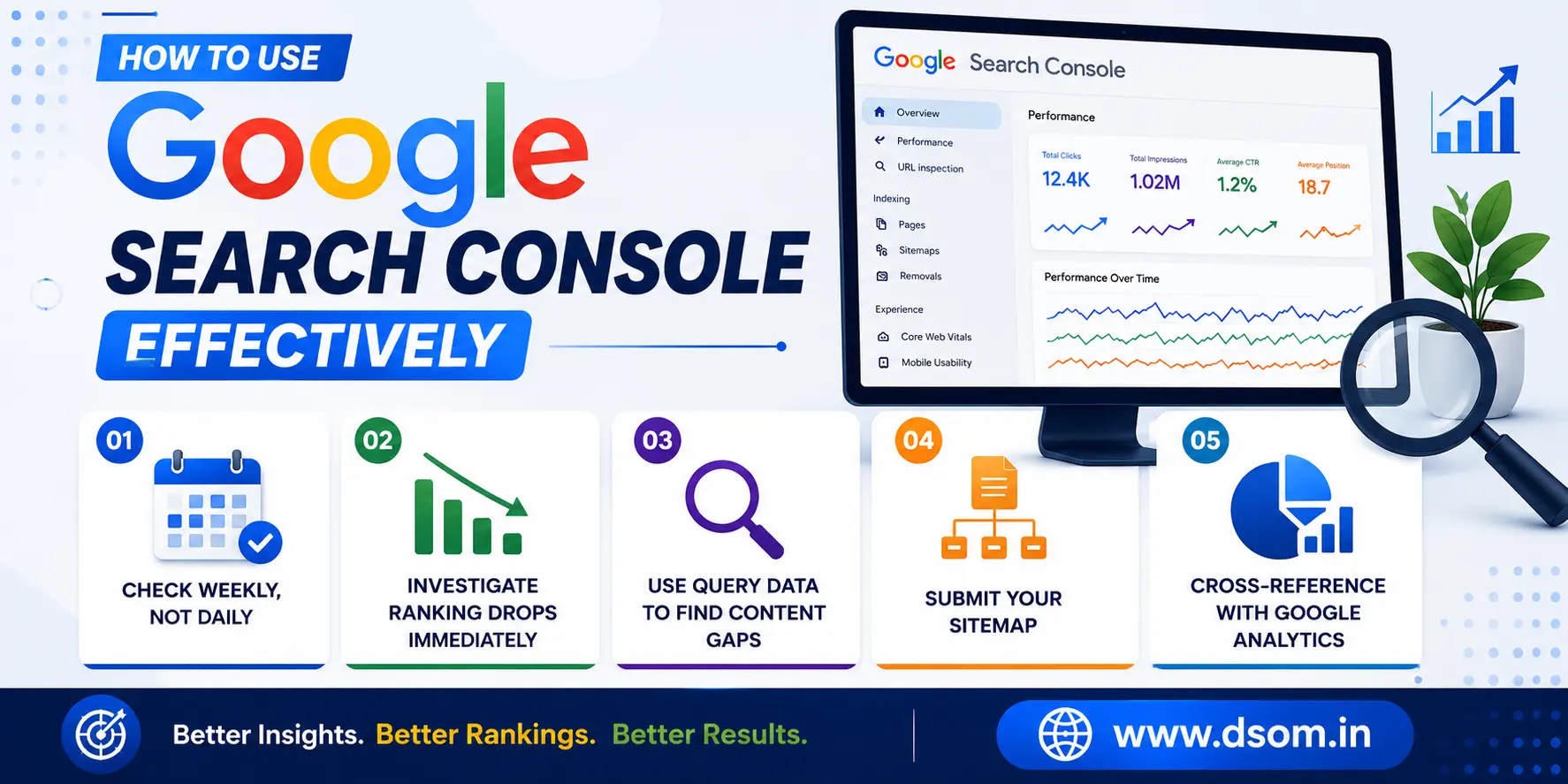
- Check weekly, not daily: Search Console data updates with a delay, and daily checking often shows noise rather than meaningful trends. A weekly review of the Performance and Coverage reports is sufficient for most sites.
- Investigate ranking drops immediately: If you notice a sudden drop in impressions or average position for important pages, check the Coverage report for indexing issues and the Manual Actions report for penalties before assuming it is an algorithm update.
- Use query data to find content gaps: The Performance report often shows queries where your page ranks on page two or three. These represent quick-win opportunities — often just a content update or better internal linking away from ranking higher.
- Submit your sitemap after every major site update: This signals to Google that new or updated content is ready to be crawled, speeding up the discovery process significantly.
- Cross-reference with Google Analytics: Search Console vs Google Analytics is not really a competition — they serve different purposes. Search Console shows pre-click data (how your site appears in search), while Analytics shows post-click behavior (what users do once they arrive). Using both together gives you the complete picture from search query to conversion.
Google Search Console for Beginners: Common Mistakes
| Mistake | Why It’s a Problem |
|---|---|
| Never checking the Coverage report | Indexing issues go unnoticed for months |
| Ignoring mobile usability warnings | Hurts rankings under mobile-first indexing |
| Not submitting an XML sitemap | Slows down discovery of new content |
| Treating impressions as traffic | Impressions are appearances, not visits — CTR matters more |
| Verifying only one property type | Missing data from www vs non-www or http vs https versions |
| Ignoring manual action alerts | Can result in serious, prolonged ranking penalties |
Final Thoughts
Google Search Console is one of the most valuable free tools available to anyone managing a website. It removes the guesswork from SEO by showing you exactly how Google crawls, indexes, and ranks your pages — and gives you the data you need to fix problems before they cost you traffic.
Whether you are just learning what is Google Search Console or you have been using it for years, the key is consistency. At DSOM (Dehradun School of Online Marketing), we believe that successful SEO is built on accurate data and continuous optimization. Regular Google Search Console setup checks, careful attention to indexing reports, and a habit of using performance data to guide content decisions will keep your site healthy and visible in search results.
Start with verification, explore each report, and build the habit of checking Search Console regularly. Over time, it becomes one of the most useful tools in your entire SEO toolkit.